Deutsch

This document provides a detailed process for setting up a web development environment for traditional CMS systems such as WordPress. The guide will walk you through the installation and configuration of essential components like PHP, Nginx, and MariaDB.
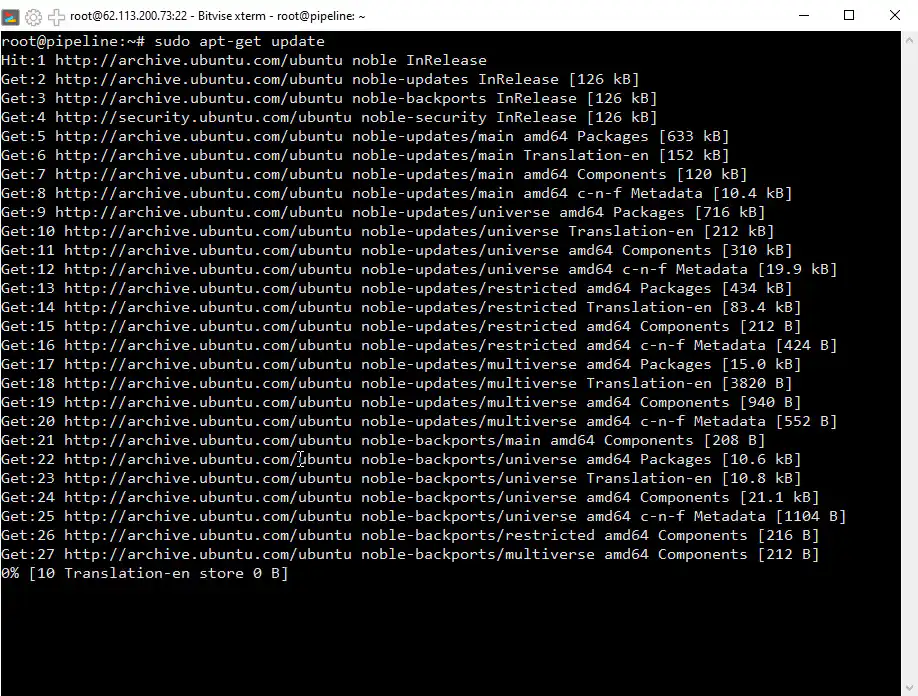
Step 1: Update Package List
Begin by updating your package list. Execute the command: sudo apt update.
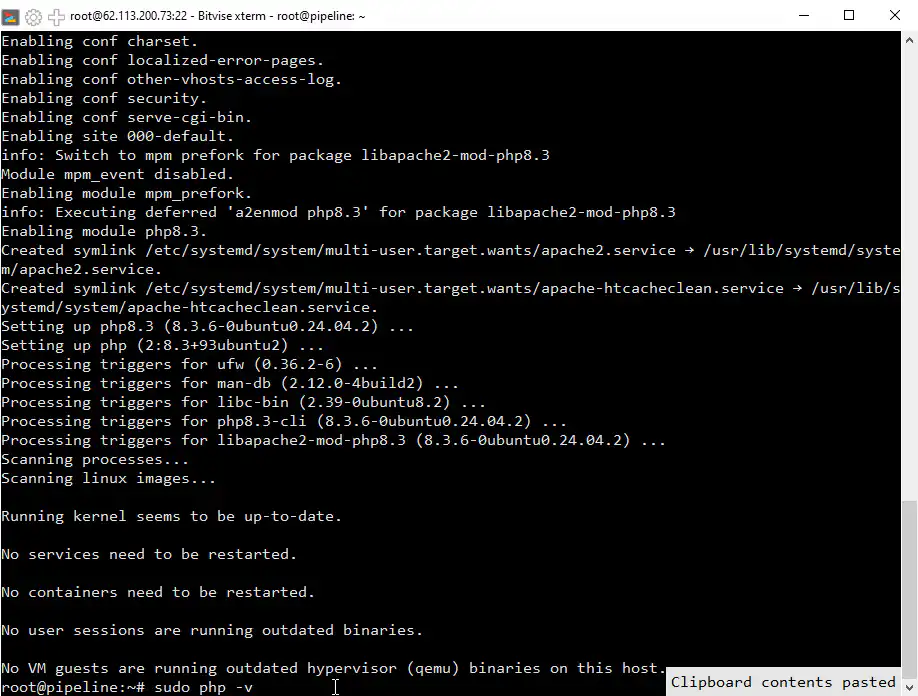
Step 2: Install PHP and Essential Modules
Once the update is complete, proceed to install PHP along with its common modules by running the following command: sudo apt install php php-cli php-mysql php-xml php-gd php-curl.
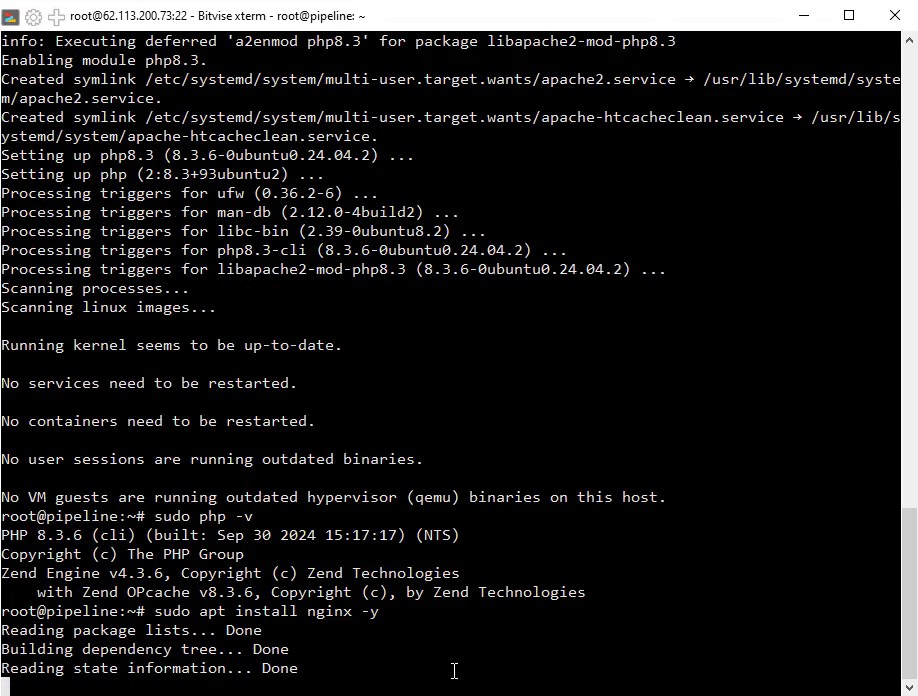
Step 3: Verify PHP Installation & Install Nginx
To verify the PHP version, type sudo php -v . Next, install the Nginx web server by executing: sudo apt install nginx -y .
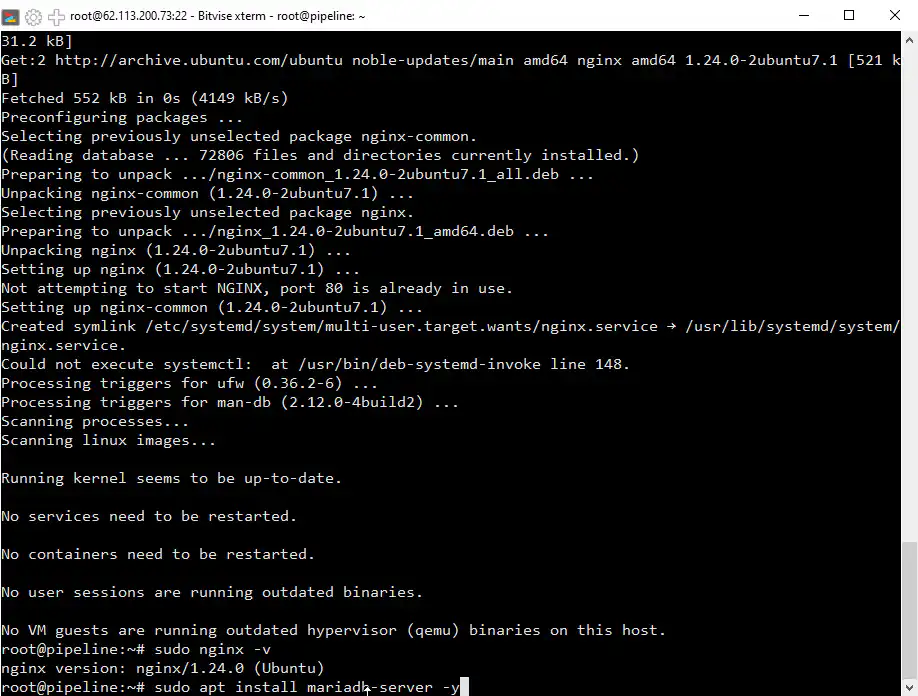
Step 4: Check Nginx Installation & Install MariaDB
After installation, check the Nginx version to ensure it’s properly installed. Then, proceed to install MariaDB, a database management system, using the command: sudo apt install mariadb-server.
Step 5: Secure MariaDB Setup
Secure and configure MariaDB by executing: sudo mysql_secure_installation.
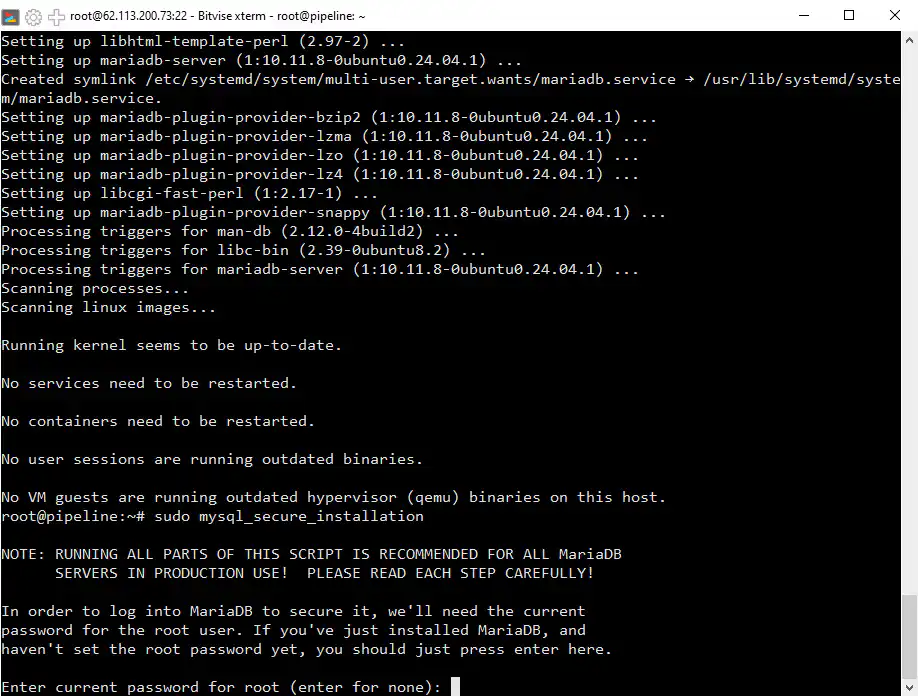
Step 6: Configure MariaDB Authentication & Password
Press Enter at the first prompt. Type ‘n’ for Unix socket authentication. If you wish to set a password, type ‘y’ and enter your desired password. Re-enter the password when prompted.
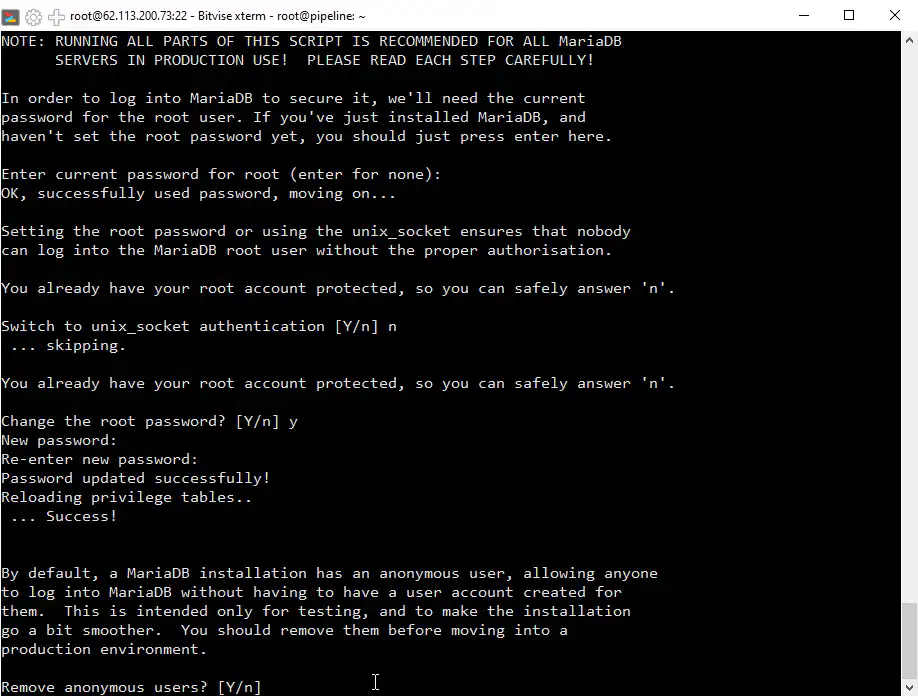
Step 7: Finalize MariaDB Security Settings
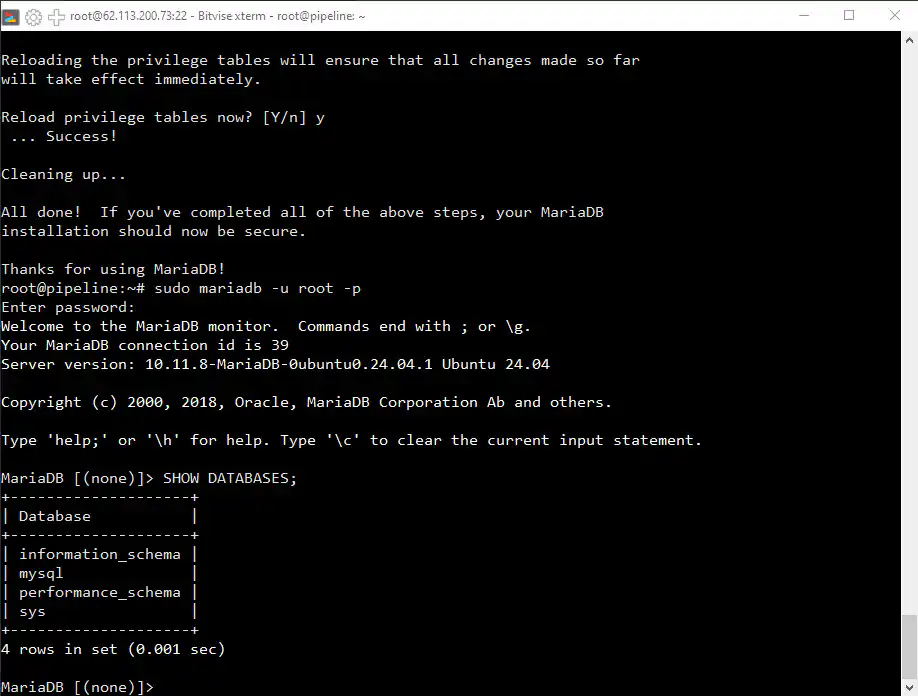
When prompted to remove anonymous users, type ‘y’. To disallow root login, type ‘y’ again. Remove the test database by typing ‘y’. Finally, reload the privilege tables by typing ‘y’.
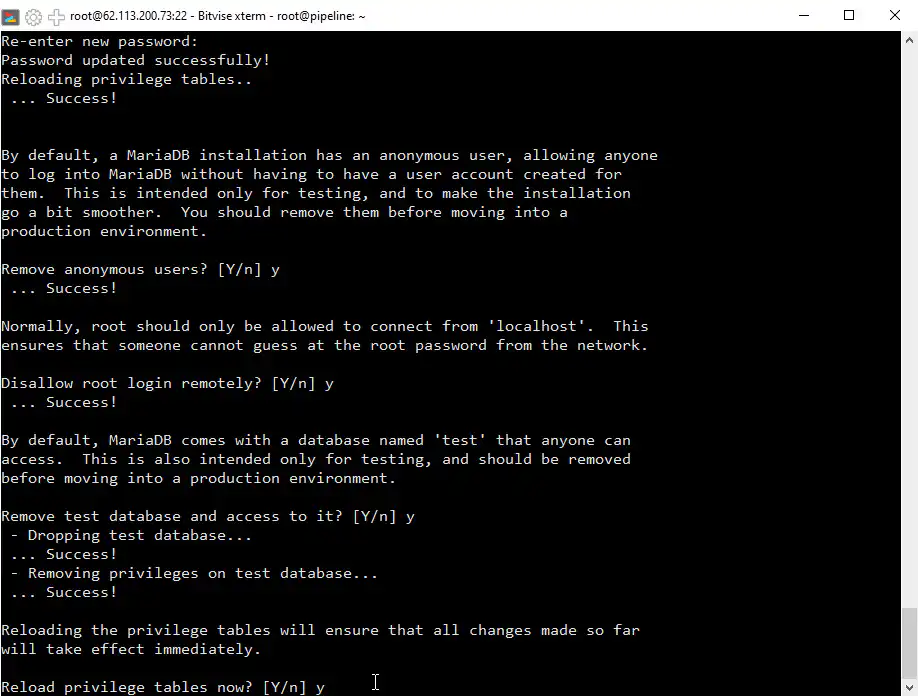
Step 8: Verify MariaDB Access
Confirm your access to MariaDB by typing sudo mariadb and logging in with the root password. Once logged in, type SHOW DATABASES; to display the databases.
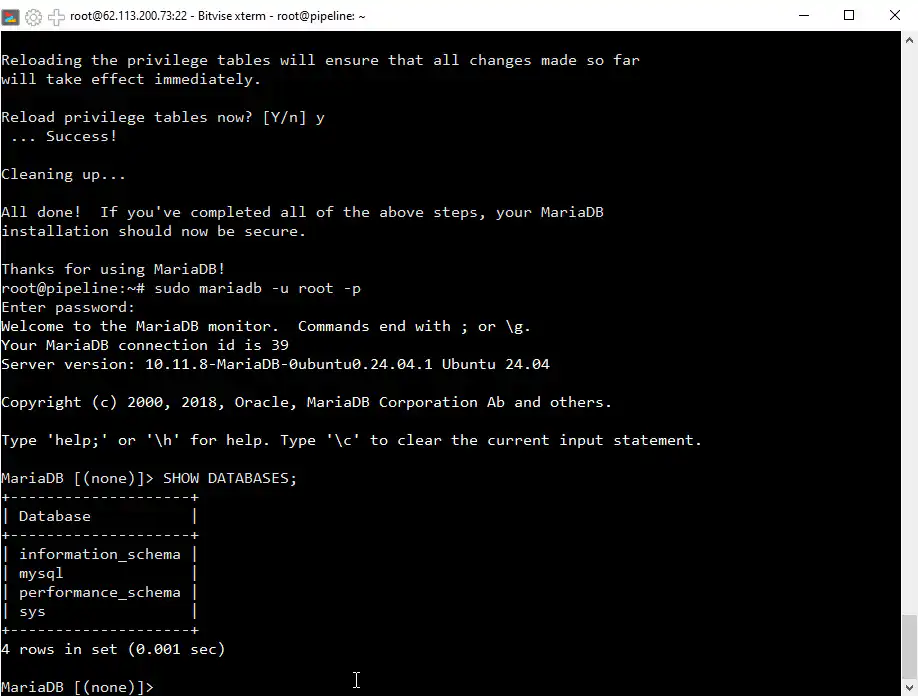
Step 9: Setup Confirmation
This confirms that the setup is successful and operational.
Frequently Asked Questions
What are the basic system requirements for setting up this environment?
A Linux-based OS (like Ubuntu), basic user privileges with sudo access, and sufficient storage for PHP, Nginx, and MariaDB installations are essential. A minimum of 1 GB of RAM is recommended to ensure smooth operation of all services.
What should I do if the installation of Nginx or MariaDB fails?
First, ensure that your package list is updated with sudo apt update . If issues persist, check your network connection and try sudo apt upgrade to install any pending system updates. For specific error messages, researching the error code can often lead to a solution.
How do I check if PHP, Nginx, and MariaDB are running correctly?
To check PHP, use php -v to confirm the version. For Nginx, run sudo systemctl status nginx to ensure it’s active. For MariaDB, sudo systemctl status mariadb will show if the service is up. Running these commands verifies that each service has been installed and launched successfully.
Is it necessary to configure the MariaDB security settings, and what do they do?
Yes, configuring MariaDB security is essential for protecting your database from unauthorized access. Running sudo mysql_secure_installation allows you to set a root password, remove anonymous users, restrict root login to the local machine, and remove the test database – all of which enhance database security.